HappyMod for PC — Download & Install Guide (Windows & Mac)
What is HappyMod For PC
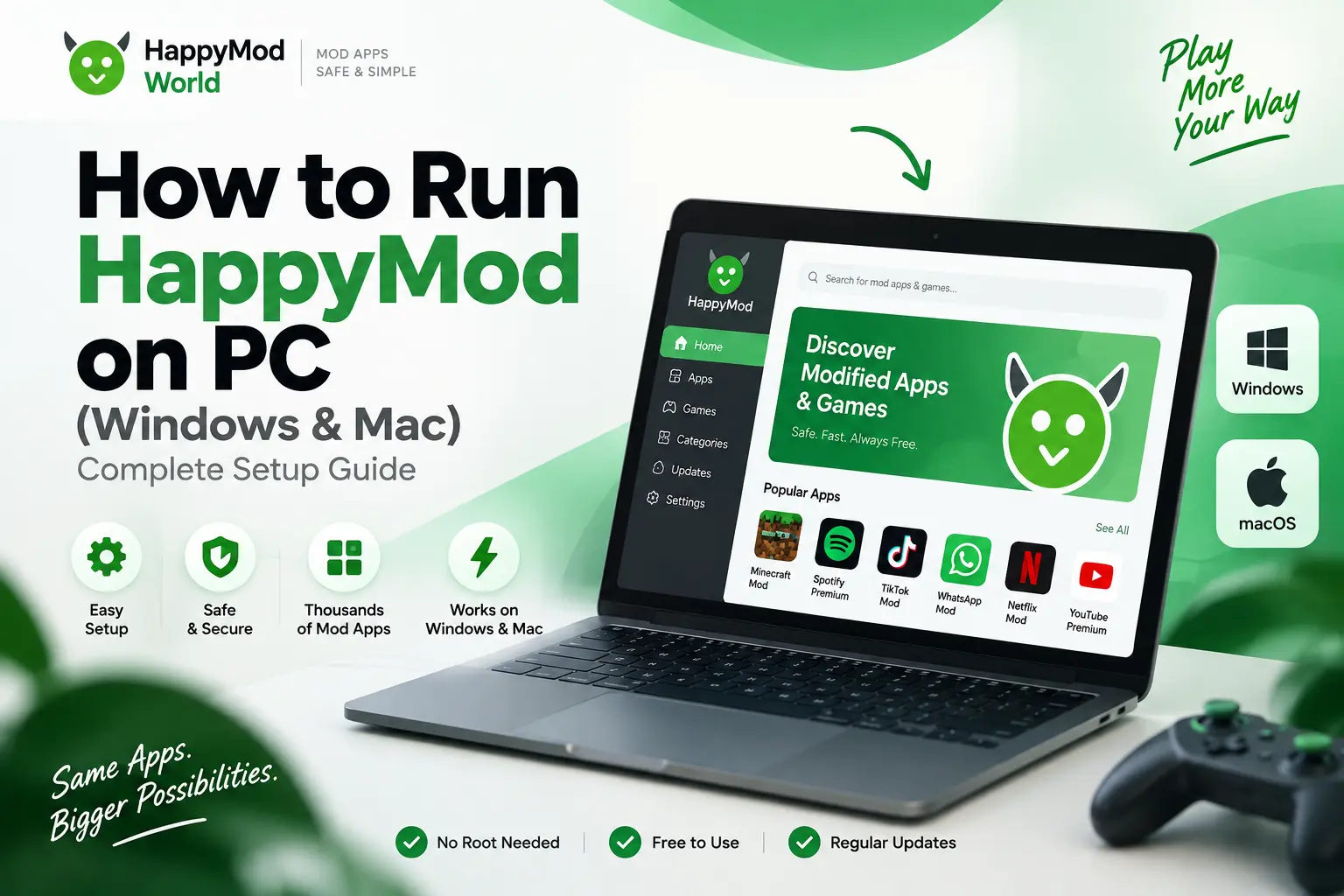
HappyMod is a third-party Android app store that hosts different modified apps and games. It is considered an alternative to the Play store because it provides apps and games with unlocked premium features. HappyMod is built as an Android APK, not software, so there is no official HappyMod for Windows or Mac. But no worries, it can run on a computer through an Android emulator. This guide walks through exactly how that works, which emulator fits your setup, what can go wrong, and how to avoid the fake “HappyMod.exe” files that circulate online.
Is There an Official HappyMod App for PC, Windows, or Mac?
There is no native Windows or Mac application for HappyMod. As explained above, it is an Android-built APK, so there is no official version for PC, Windows, or Mac. People use only one supported way that is to run HappyMod PC through an Android emulator on a computer.
Why HappyMod Doesn’t Have a Native Windows or Mac Version
HappyMod is made for Android, so it comes as an APK file. Windows and Mac use different types of apps, such as .exe files on Windows and .dmg or .app files on Mac. Because of this, a computer cannot open and run an Android APK directly.
That is where an Android emulator helps. An emulator creates a virtual Android device on your Windows or Mac computer. You can then install the HappyMod APK inside it and use HappyMod much like you would on an Android phone.
Beware of Fake HappyMod.exe or HappyMod.dmg Installers
Be careful: if a website offers a direct download called HappyMod.exe, HappyMod_Setup.exe, or HappyMod.dmg, it is not the real app. Since HappyMod only exists as an Android APK, any file claiming to be a native Windows or Mac installer is either a repackaged, unrelated program or a vehicle for malware and adware.
Why Use HappyMod on PC? Benefits of the Bigger Screen
Using HappyMod for PC not only provides a bigger picture, but it also changes the actual experience of browsing and using modded apps. Here’s what you will enjoy if you shift from Android to HappyMod for PC.
Better performance than a phone.
A mid-range desktop or laptop typically has more RAM, a stronger processor, and far more storage than the average Android phone. That offers a smoother app browsing experience, faster mod installs, and fewer slowdowns when running larger, resource-heavy games.
Frees up your phone’s battery and storage.
Every mod downloaded through the PC version stays on your computer, not your phone. This matters if your device is already low on storage. It also means you’re not draining your phone’s battery by running an app store in the background, and you stay reachable for calls and notifications without interruption.
Keyboard and mouse control.
Games that need quick taps or multiple fingers can be easier to play on a PC. A mouse and keyboard give you better control, especially in shooting, strategy, and other games with many on-screen buttons. Most emulators also let you set keyboard keys for touch controls, making some games easier to play.
Faster and more stable downloads.
A PC can often provide a more stable internet connection than mobile data. It also usually has more storage space, so downloading large game files is easier and less likely to stop because your phone is running out of space.
HappyMod PC — Key Facts at a Glance
System Requirements to Run HappyMod on PC
HappyMod itself is a lightweight app, so the real system requirements come from whichever Android emulator you choose to run it in. Here’s what to check before downloading. If you want to check requirements for iOS, read full guide at: happymod for iOS
Minimum Requirements
Basic requirements for running HappyMod through an emulator.
Recommended Requirements
For smoother browsing, multitasking, and larger games.
Best Android Emulators to Run HappyMod on PC
Not every emulator fits every computer. Some need a powerful gaming PC; others run fine on an old laptop. Here’s a real look at each one, including what makes it different.
BlueStacks 5
BlueStacks is one of the most widely used Android emulators, and it’s usually the first name people try. It needs at least 4GB of RAM (8GB recommended) and works on Windows 7 and above, or Intel-based Macs running macOS 10.12 and up.
BlueStacks Air
This is a separate product from BlueStacks 5, built specifically for Macs with Apple’s own ARM chips. It will not install on an Intel Mac or a Windows PC — it’s Apple Silicon only.
LDPlayer
LDPlayer is built for gaming performance, and it’s a common pick for anyone planning to play modded games rather than just browsing apps. It needs 2GB RAM minimum, while the recommended setup is much higher.
MEmu
MEmu is the lightest option on this list for older hardware — 2GB RAM for the 32-bit version, 4GB for 64-bit. It’s ad-supported but completely free.
Emulator Comparison
Compare the main options before choosing one for HappyMod.
| Emulator | Platform | Min RAM | Recommended RAM | Best For |
|---|---|---|---|---|
| BlueStacks 5 | Windows, Intel Mac | 4GB | 8GB | General use, most popular |
| BlueStacks Air | Apple Silicon (M1–M4) only | 8GB | 16GB | Mac users on M-series chips |
| LDPlayer | Windows only | 2GB | 16GB | Gaming, heavy mods |
| NoxPlayer | Windows, Intel Mac | 2GB | 4GB | Older/low-spec hardware |
| MEmu | Windows only | 2–4GB | 8GB | Multi-instance, light use |
| GameLoop | Windows only | 8GB | 16GB | PUBG Mobile, COD Mobile, Free Fire |
Which Emulator Should You Choose?
For most people installing HappyMod for the first time, BlueStacks 5 is a solid starting point. On Apple Silicon Macs, use BlueStacks Air. These are among the better-documented options, so troubleshooting help is easier to find if something goes wrong.
How to Download & Install HappyMod on PC (Step-by-Step)
The process is the same no matter which emulator you picked above — only the emulator’s own installer changes
Download and install your chosen emulator
Go to the emulator’s official website (never a third-party mirror) and download the installer for your operating system. Run it and complete the first-time setup, which usually takes 5–10 minutes.
Sign in with a Google Account
Most emulators ask you to sign in with a Google account during the first setup, the same way a new Android phone would. This isn’t required for HappyMod itself, but the emulator uses it to set up its virtual Android environment properly.
Download the HappyMod APK
Head to HappyModWorld.com and download the latest version of the HappyMod APK compatible with your PC setup. Make sure you download it from a trusted source, not a fake mirror site.
Install the APK inside the emulator
Most emulators let you simply drag the downloaded APK file onto the open emulator window, and installation starts automatically. If drag-and-drop doesn’t work, look for an “Install APK” button, usually in the emulator’s sidebar or toolbar.
Confirm the installation prompt
A standard Android install confirmation will appear inside the emulator window — the same prompt you’d see when sideloading an app on a real phone. Tap or click “Install” to proceed.
Open HappyMod from the home screen
Once installation finishes, the HappyMod icon appears on the emulator’s virtual home screen, just like any other app. Click it to launch HappyMod and confirm the catalog loads properly.
How to Use HappyMod Inside the Emulator
Once HappyMod is installed, using it inside an emulator works almost exactly like using it on a phone — with a few small differences worth knowing.
Searching and downloading mods. Open HappyMod from the emulator’s home screen and use the search bar the same way you would on mobile. Each listing shows a working-rate percentage; this tells you how many other users successfully installed that specific mod version. Use the versions with a high working rate; a low one usually means that build is outdated or broken.
Installing and managing downloads. Click on a mod to open its download page, then hit the download button. HappyMod queues downloads one at a time by default. You can check progress from the app’s download manager, and finished files install automatically. You’ll get the same Android install prompt you’d see on a phone.
Mapping keyboard and mouse controls. This is where PC actually beats mobile. Most emulators include a Controls Editor that lets you assign specific keys or mouse actions to on-screen buttons. For games that use taps, swipes, or drag gestures, you can bind these to WASD, arrow keys, or mouse clicks. It takes a few minutes to set up the first time, but it’s a one-time job per game.
Performance & Compatibility: HappyMod on PC vs Phone
Running HappyMod through an emulator is not identical to running it on real Android hardware. A few gaps show up in daily use, and most of them come down to one thing: an emulator is software pretending to be a phone, not the phone itself.
Push Notifications Are Unreliable in Emulator
Notifications work differently on an emulator. On BlueStacks, for example, mobile alerts only arrive in real time if the app player stays active and your PC isn’t asleep — closing the window or letting your computer sleep pauses them. If you’re relying on HappyMod or a modded app to alert you about something time-sensitive, don’t count on the notification arriving instantly.
Background Downloads Can Pause
An in-progress download might pause if you minimize the window or switch to another program. This especially happens on lighter emulators with aggressive background-resource limits. If a large mod download seems stuck, check that the emulator window is still active rather than assuming your internet connection is at fault.
Downloaded Files Stay Inside the Emulator’s Storage
Anything HappyMod downloads gets saved inside the emulator’s own virtual storage, not your PC’s regular file system. You won’t find these files by browsing your normal Windows or Mac folders — you’d need to access them through the emulator’s built-in file manager, or a shared folder feature if your emulator offers one.
3D and Heavy Mods May Run Slower
Even if your PC has more RAM and a faster CPU, some heavy 3D games may still run slowly in an emulator. The emulator needs extra resources to run Android on your PC. Old graphics drivers can also cause lag. If a game runs slowly, try updating your graphics drivers first.
HappyMod PC Common Problems & Fixes (Troubleshooting)
Most issues with HappyMod on PC are due to the emulator, not the app itself. Here’s how to resolve the ones that come up most often.
App not downloading, or install fails silently.
Check free storage first — both on your PC and inside the emulator’s allocated disk space. Emulators reserve a fixed amount of virtual storage, and if that fills up, downloads can fail without a clear error message. Clearing old mods or increasing the emulator’s storage allocation in its settings usually fixes this.
Emulator crashes or shows a black screen.
This can happen because of the Android version used by the emulator. Try using a different Android version, such as Android 9. If the problem continues, uninstall the emulator, remove its leftover files, and install it again.
Slow performance.
Close other heavy programs running in the background, and check your emulator’s CPU and RAM allocation — most let you manually increase how many cores and how much memory the emulator gets, found under a performance or advanced settings tab.
Storage full.
Emulators pre-allocate a fixed virtual disk size during setup, separate from your PC’s actual free space. Even with plenty of room on your hard drive, the emulator itself can report “storage full” if that internal allocation is maxed out. Most emulators let you increase this limit from their settings without a full reinstall.
Security warnings.
Antivirus software may sometimes warn you about emulators or APK files. This does not always mean the file is dangerous. Download the emulator from its official website, get the APK from a trusted source like happymodworld.com , and scan the file before installing it.
Features of HappyMod for PC
Once it’s running on your emulator, HappyMod brings the same feature set as the mobile version — the PC setup just makes each one easier to use.
- Large mod library. HappyMod hosts over 200,000 modded apps and games, spanning everything from popular mobile titles to lesser-known utility apps.
- Fast, simple search. The search bar finds specific apps quickly, and browsing on a full monitor makes comparing results far easier than scrolling a phone screen.
- Multiple versions per app, with working-rate ratings. Popular apps often have several mod versions listed side by side. Each one shows a working-rate percentage based on real user feedback, so you can pick the version other people confirm actually installs and works.
- Completely free. No subscription, no premium tier, no paywall on the mods themselves.
- Regular updates. Mods get refreshed as the original apps update, keeping compatibility current rather than leaving you stuck on an old, broken version.
- Pause and resume downloads. Large game files don’t need to restart from zero if your connection drops or you close the emulator mid-download.
- Multi-language support. The interface is available in several languages, making it accessible beyond English-speaking users.
Is HappyMod Safe to Use on PC?
The honest answer: it depends on what you’re downloading, not just where you’re downloading it from. HappyMod’s own APK is regularly checked against VirusTotal’s 65+ antivirus engines and comes back clean. The risk sits elsewhere — in the individual mods uploaded by the community.
There are three main risks to understand: platform risk, catalog risk, and account risk. Platform risk is about the HappyMod app itself; catalog risk comes from individual mods that may contain harmful software; and account risk comes from using mods in online games or apps that may lead to an account ban. So, a mod can be safe from malware but still cause problems with your account.

Antivirus Scanning Before Install
Before installing any mod, running it through VirusTotal takes under a minute and checks the file against dozens of antivirus engines at once. You can either upload the APK directly at virustotal.com, or generate the file’s SHA256 hash with a checker app and paste that into VirusTotal’s search bar to see if that exact file has already been flagged by anyone else. This step matters more on PC than it might seem — since you’re likely downloading multiple mods to test on a bigger screen, scanning each one before installing takes only a few extra minutes total.
Checking App Permissions
Before installing, look at what permissions a mod requests. A simple game asking for access to your contacts, SMS messages, or call logs is a warning sign — legitimate mods rarely need permissions unrelated to their actual function. This check takes seconds and catches a good share of poorly-behaved mods before they’re ever installed.
Pros and Cons of HappyMod for PC
Pros
Bigger screen makes browsing and comparing mods far easier than on mobile
Keyboard and mouse controls improve gameplay for many mod types
Frees up your phone’s storage and battery entirely
Multiple mod versions with visible working-rate feedback help avoid broken downloads
Completely free, with no subscription required
Cons
No official native app — running it always requires an emulator
Some mods carry real malware or account-ban risk, and that risk falls on the user to check
Motion-sensor-based mods can’t use real tilt input, even with workarounds
Emulator overhead can make some heavy 3D mods run slower than expected, even on strong hardware
Notifications and background downloads can behave less reliably than on a real phone
Conclusion
Running HappyMod on PC isn’t complicated once you understand the one core fact behind everything in this guide: there’s no native app, so every part of the process — installation, performance, safety — runs through an Android emulator instead. Pick the right emulator for your hardware, enable virtualization before you start, and treat mod safety as a per-download decision rather than a one-time check.
Ready to get started? Download the latest HappyMod APK below and follow the step-by-step setup covered earlier in this guide.
Frequently Asked Questions