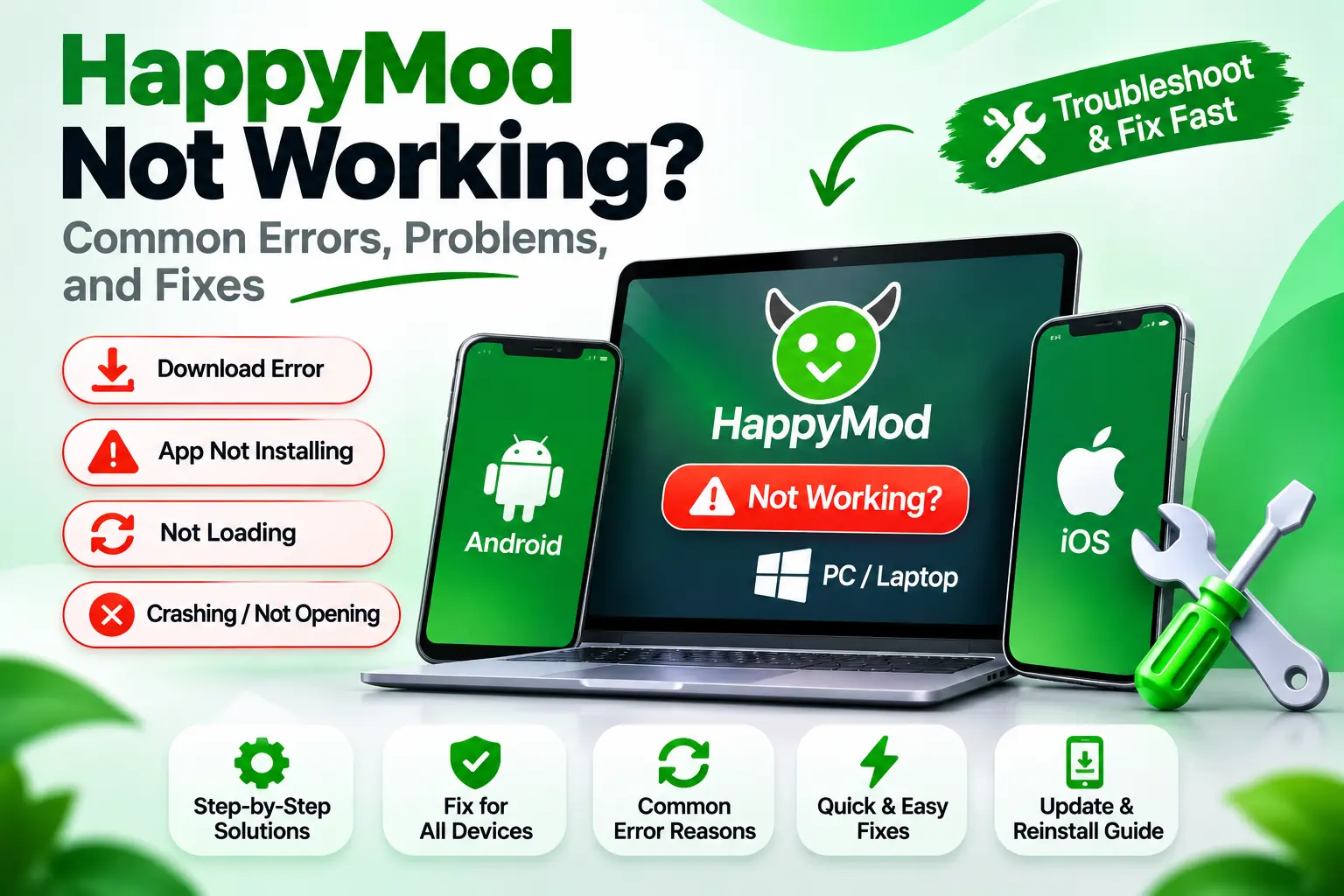
HappyMod Not Working? Common Errors, Problems, and Fixes
Users often face problems with “HappyMod not working” due to any of these errors. If you are facing problems with HappyMod, such as the app not opening, crashing, getting stuck while downloading, or ending an installation with an error, this guide can help. The errors depend on what you are trying to download: a file, install an APK, open the app, or run a modified game.
All the problems are different, and they require different solutions. This guide covers common HappyMod problems for specific devices, each with its own section. Sections include HappyMod problems on Android, download and installation errors, MOD apps that do not work, iOS errors and solutions, and HappyMod troubleshooting for PC.
Find Your Problem
Having trouble with HappyMod? Your problem may be covered below. Select it to jump directly to the relevant solution.
Why Is HappyMod Not Working?
HappyMod is not a single app; it is actually a hub of multiple apps. Many of these apps are actually not available on the Google Play Store or the Apple App Store. It’s a third-party Android app installer that provides modded versions of apps created by independent mod creators. This whole structure is the cause of “HappyMod not working”. Understanding this structure matters because it changes how you troubleshoot. We will discuss both server-side and device-side errors in this guide.
Common Reasons HappyMod Stops Working
HappyMod usually stops working for one of seven reasons. Find the symptom you see on your screen in the table below, and it will point you to the likely cause and the first thing to try.
| What You See | What’s Probably Wrong | First Thing to Try |
|---|---|---|
| “Try again later,” or downloads stuck | HappyMod’s servers are overloaded or down | Wait 30 to 60 minutes, then retry |
| App crashes or closes when you open it | You’re using an old version of HappyMod | Install the latest HappyMod APK |
| MOD installs but force-closes, or won’t install | The MOD doesn’t support your Android version | Try an older or newer version of that MOD |
| Download stops halfway | Your phone is almost out of storage | Free up at least 1 GB of space |
| “There was a problem parsing the package” | The APK file is broken or incomplete | Delete it and download it again |
| Download never starts | Your Wi-Fi, ISP or VPN is blocking it | Switch to mobile data or turn off the VPN |
| Install is blocked with no clear message | Your phone’s security settings (such as MIUI or One UI) are stopping it | Allow installs from this source in Settings |
How to Identify Which HappyMod Error You Have
Before applying any fix, it helps to narrow down what is actually failing. A simple way to do that:
- If the problem happens before any download starts (app won’t open, catalog won’t load) → it’s likely a HappyMod app or server issue, not a MOD-specific one.
- If one specific MOD fails but others download fine → the problem is almost always with that individual APK file, not HappyMod itself.
- If downloads start but stop midway → check storage space and network stability first.
- If installation fails after a successful download → the issue is compatibility (Android version, architecture, or a signature conflict), not the download itself.
- If everything was working yesterday and broke today → it’s most likely a server-side change or an Android system update, not something you did.
Quick Checks Before Trying Other Fixes
Before diving into the detailed fixes covered later in this guide, run through this 60-second checklist. It resolves a large share of HappyMod issues on its own:
- Confirm your internet connection is active and stable (try loading a webpage)
- Check available device storage; HappyMod and most MODs need at least 500MB–1GB free
- Make sure you’re on the latest version of the HappyMod app itself
- Restart the app completely (not just minimize it) before retrying
- If using Wi-Fi, try switching to mobile data once to rule out a network-specific block
If none of these resolve the issue, the problem is specific enough that you’ll want to jump to the exact section matching your error, covered next.
How to Fix HappyMod Download Problems
HappyMod download fails in different ways, such as getting stuck at 0%, freezing midway, staying in the queue, or displaying a “Try again later” message. Before you consider it spam, make sure you check the stability of your internet connection. Also, the availability of storage on your device matters as well. Tap your symptom below and the matching fix will appear.
happymod-v3.4.1.apk
Status: Stuck at 0% — connection blocked or busy server?
Status: Freezes partway — signal drop or full storage.
Status: Try again later — file not available on source.
Status: Waiting for queue — background activity restricted by android.
Tap your symptom ↓
Most likely cause: Blocked connection, VPN, or busy server → Fastest fix: Turn off VPN, toggle airplane mode, retry
Most likely cause: Low storage, dropped signal, or ISP slowdown → Fastest fix: Free up space, switch networks, restart the download
Most likely cause: File not available from that source → Fastest fix: Delete the failed item, start a new download
Most likely cause: Battery saver or background data limits → Fastest fix: Allow background data, exempt HappyMod from battery saver
Pre-flight check — turn these three on before you retry
Tick all three and the READY message will unlock below. This is the check most people skip.
Full repair pipeline — from server to phone
HappyMod Download Stuck at 0%
If a download hasn’t been moving from 0%, the reason is possibly a weak internet connection, not a corrupt file. However, there might be an issue with the download server.
Open a website in your browser to confirm that your internet connection works → switch between Wi-Fi and mobile data to check whether one connection is causing the problem → if you use a VPN, disconnect it temporarily and retry the download if doing so is safe and appropriate for your network → wait a few minutes and try again in case the download service is temporarily unavailable.
If your websites work while only the download is stuck at 0%, most probably the issue is with the download server, and it is temporary.
HappyMod Download Not Starting or Staying in Queue
If a download remains on “Waiting” or never starts, Android may be restricting background activity, or the download manager may not be processing the request correctly.
Check whether another download is already running or waiting → turn off Battery Saver temporarily and try again → check whether background data is restricted for HappyMod → reopen the app and retry the download.
HappyMod Download Failed or Interrupted
If a download begins but stops before completion, the reasons are insufficient storage or a temporary problem with the file source.
Confirm that your device has enough free storage for the file and the temporary space needed to save it → if the download repeatedly fails, cancel it and remove the incomplete file from your Downloads folder → start a fresh download rather than repeatedly trying to install a partially downloaded file.
Downloaded APK File Is Incomplete or Corrupted
If the download did not finish correctly, the incomplete file may still appear in your downloads. This incomplete file is rejected by Android during installation.
Open your phone’s file manager and locate the APK → check whether the browser reported that the download completed successfully → if the file appears incomplete or the installation fails with a parsing error, delete that copy → download the file again from a source you can verify, using a stable connection.
HappyMod Shows “Try Again Later”
The “Try again later” message indicates a temporary server problem, a failed download request, or an unavailable file source. It does not identify one definite cause by itself.
Check whether other websites and apps can access the internet → close HappyMod and reopen it → wait a short while before making another download request → if only one particular file triggers the message, check whether that file is still available rather than assuming the entire service is down.
HappyMod Says “All Servers Are Busy”
This message suggests that the requested download service may be temporarily overloaded or unavailable. However, the message alone does not prove that every HappyMod server is down.
Wait a few minutes and retry → restart HappyMod and make a fresh request → test another download to see whether the problem affects only one file → check your internet connection if other downloads are also failing.
HappyMod Download Link Not Working
Sometimes the app opens, but tapping a download link does not start the download or opens an unexpected page. First, check whether the link is supposed to open an external file-hosting page. If it does, make sure you can identify the actual download control rather than an advertisement or unrelated pop-up.
Close unexpected pop-ups and return to the original page → retry the request after checking your connection → if other files work but this link does not, the specific file or download source may be unavailable → do not install an unrelated file or profile that appears while trying to reach the download.
HappyMod Downloads Slowly
A weak Wi-Fi, poor mobile-data coverage, network congestion, or a slow file source results in slow downloads. It also depends on the size of the file.
Move closer to your Wi-Fi router if the signal is weak → compare Wi-Fi and mobile data to see which connection performs better → pause other large downloads or streaming activity temporarily → check available storage if the download repeatedly slows or stops → retry later if the problem appears limited to one particular file source.
How to Fix HappyMod Installation Errors on Android
HappyMod installation error occurs when an APK is incompatible with your Android version, conflicts with an existing app, is incomplete, or is blocked by device settings. The exact error message can help identify the cause, so check what Android displays before trying another installation.
How to Fix the “App Not Installed” Error
This is usually a sign of incompatibility between the APK and your device. Conflict with any existing app also results in this error. Check your Android version, available storage, and whether another version of the same app is already installed before trying again.
How to Fix “There Was a Problem Parsing the Package”
A parse error usually means Android cannot properly read or process the APK file. The file may be incomplete, incompatible with your Android version, or incorrectly packaged. Try obtaining a fresh, compatible APK instead of repeatedly installing the same file. You can download all old and new versions of HappyMod according to your device compatibility from happymodworld.com.
How to Fix Package Conflict Errors
Package conflicts may occur when an installed app and a MOD have different signatures or when Android detects an incompatible version of the same package. If you are replacing an existing app, check whether the MOD is compatible with your already installed version before proceeding.
How to Fix Installation Blocked Errors
Android sometimes blocks an APK because the installation source is not permitted or because the device’s security system considers the file potentially unsafe. Review the warning and verify the APK’s source before deciding whether to proceed. Do not disable security protections just to force an installation. Check our happymod safe guide to clear all your doubts regarding HappyMod’s safety.
How to Fix Insufficient Storage Errors
Your phone needs enough free space to save and install an APK. Remove unnecessary files, clear unwanted downloads, or uninstall apps you no longer use. Remember that installation often requires additional temporary storage beyond the APK’s file size.
How to Fix an APK Architecture or Compatibility Error
Some APKs are built for specific processor architectures or Android versions. If an APK is incompatible with your device, it may fail to install even when the file downloads successfully. Check the app’s compatibility information before downloading another version.
How to Fix Installation Permission Problems
Android requires permission to install applications from a particular source, such as your browser or file manager. If installation is blocked, review the relevant settings for that source and make sure you understand the security implications before granting permission.
How to Fix an Installation That Stops or Fails Silently
If the installation stops without displaying a clear error, restart your phone and try again. If the problem continues, check available storage, Android compatibility, and whether the APK is complete. Repeated installation attempts using the same problematic file do not resolve the issue.
How to Check Android Version Compatibility
Open your phone’s Settings and look for About phone or Software information to check your Android version. Compare it with the application’s compatibility requirements. An APK designed for a newer or older Android version may not install or work correctly on your device.
How to Resolve Conflicts With an Existing App Version
If a MOD cannot replace an existing application, the installed app may have a different signing certificate or package configuration. Check whether the MOD is intended to replace that version. Removing an existing app may delete its locally stored data, so back up important information before uninstalling anything.
How to Fix HappyMod When It Crashes or Won’t Open
HappyMod may crash, freeze, or fail to open because of temporary app problems, outdated files, device compatibility issues, or changes in Android. The right fix depends on when the problem occurs and how the app behaves.
HappyMod Crashes Immediately After Opening
If HappyMod closes as soon as you launch it, restart your phone and try opening the app again. Check whether your device has enough free storage and whether the installed HappyMod version supports your Android version. If it continues crashing, the app’s temporary data or installation files may be causing the issue.
HappyMod Shows a Black Screen
A black screen usually means the app is failing to load its interface properly. Close HappyMod completely, reopen it, and restart your device if necessary. If the screen remains black, clearing the app cache or checking for an available update may help.
HappyMod Freezes or Becomes Unresponsive
If HappyMod gets stuck while loading or stops responding to taps, force-stop the app through your phone’s settings. Close unnecessary background apps and try again. A lack of available memory or a temporary app problem may be responsible for the freeze.
HappyMod Closes After an Android Update
If HappyMod started crashing after an Android update, the installed app version may no longer work properly with your updated system. Check whether a newer HappyMod version is available and restart your phone. If the issue affects other apps too, the Android update itself may need further troubleshooting.
How to Clear the HappyMod App Cache
Clearing the cache can help if temporary files are causing HappyMod to crash or load incorrectly.
- Open your phone’s Settings.
- Go to Apps or App Management.
- Select HappyMod.
- Tap Storage or Storage & Cache.
- Select Clear Cache.
This normally removes temporary files without deleting your app data.
When to Restart, Update or Reinstall HappyMod
Restart your phone when HappyMod suddenly stops working. If the problem continues, check for an available app update. Reinstalling should be your last option because it may remove saved app data or settings. Before reinstalling, make sure the APK comes from a source you trust.
How to Check Whether a Newer Version Caused the Problem
If HappyMod began crashing after you installed a newer version, the update may have introduced a compatibility issue. Check the release information and recent user reports to see whether others are experiencing the same problem. If the issue is widespread, waiting for a corrected release may be better than repeatedly installing different APK versions.
How to Fix MOD Apps That Don’t Work
MOD App Installs but Won’t Open
If a MOD app installs successfully but won’t open, check whether the MOD is compatible with your Android version and the original app or game version. Restart your phone and try again. If it still fails, the downloaded MOD may be outdated, incomplete, or incompatible with your device.
MOD Features or Unlocked Content Not Working
Some MODs install normally, but their advertised features, such as unlocked levels, premium options, or modified gameplay, may not work. This can happen when the MOD is outdated, the original app has changed, or a feature depends on online services that the modification cannot control. Check the MOD’s description and recent user feedback before assuming the entire app is broken.
MOD App Crashes During Gameplay
If a MOD game opens but crashes during gameplay, the modified files may not match the game’s current version or your device’s capabilities. Close other running apps, restart your phone, and check whether the MOD requires a specific Android version or additional game data. If crashes continue, the MOD itself may be unstable.
Original App and MOD App Signature Conflicts
Android may refuse to install a MOD when the original app is already installed because both versions may use different digital signatures. This can also happen when switching between MOD versions from different sources.
Before removing the original app, back up any important game progress or saved data because uninstalling may delete it.
MOD Version Is Incompatible With the Original Game
A MOD designed for an older game version may not work with a newer release. Differences in app versions, game files, or required data can cause crashes, missing features, or installation problems. Check the MOD’s version details and compatibility information before installing it.
Why a Previously Working MOD Stops Working After an Update
A MOD that worked previously may stop functioning when the original game or app receives an update. Changes to game files, online services, or compatibility requirements can affect modified versions. If the problem started after an update, the MOD may need to be updated by its creator to work with the new release.
How to Check MOD Working Rates and Recent User Comments
Before trying another MOD, check its working percentage and recent comments on the HappyMod listing, if available. These can help you identify reported crashes, broken features, or compatibility problems.
Working percentage: A higher percentage may indicate more positive user feedback, but it is not a guarantee that the MOD works or is safe.
Recent comments: Look for reports about crashes, missing features, login problems, or compatibility.
MOD version: Compare the listed version with the version of the original app or game.
HappyMod iOS Problems: What iPhone Users Should Know
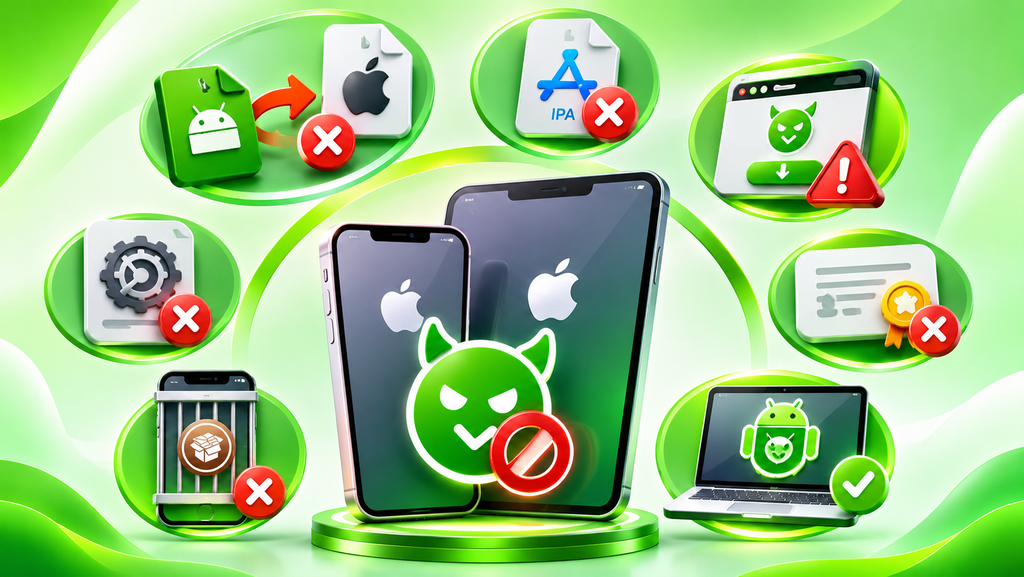
HappyMod is designed for Android, so iPhone and iPad users may encounter compatibility problems when trying unofficial iOS installation methods. APK files cannot be installed directly on iOS, and websites claiming to offer a direct HappyMod iOS installation may use unofficial methods that don’t work reliably.
Why HappyMod APK Cannot Run Directly on iPhone or iPad
HappyMod APK files are designed for Android, while iPhones and iPads use Apple’s iOS operating system. Because these systems use different app formats and technologies, an Android APK cannot be installed directly on an iPhone or iPad. You need an iOS-compatible app to run natively on an Apple device.
HappyMod iOS Download or IPA File Not Working
If an unofficial HappyMod IPA download fails or the file won’t install, it may be incomplete, incompatible with your iOS version, or dependent on an installation method that no longer works. Since HappyMod does not have a verified official iOS app, be careful with third-party IPA files claiming to provide the full HappyMod experience.
Fake HappyMod iOS Installers and Web-Clip Shortcuts
Some websites advertise HappyMod for iOS but provide web shortcuts, fake installation buttons, surveys, or verification loops instead of a real application. A web-clip shortcut simply adds a website icon to your home screen; it does not install an Android MOD app. Avoid providing personal information, installing unknown profiles, or completing suspicious verification steps.
Configuration Profile Installation Stops Working
If a configuration profile-based installation stops working, the profile may have expired, been removed, or become incompatible with your device. Configuration profiles can also change certain device settings, so review what a profile requests before installing it. If you don’t trust the source, remove the profile instead of attempting to restore the installation.
Enterprise Certificate Revoked or App Won’t Open
Unofficial apps distributed using enterprise certificates may stop opening when Apple revokes the certificate or when the certificate is no longer trusted. If an app suddenly stops working, the certificate may be the reason. Avoid trusting replacement certificates from unknown websites because they can introduce additional security risks.
Why Jailbreaking Doesn’t Make an Android APK Compatible With iOS
Jailbreaking removes or changes certain restrictions imposed by Apple’s operating system, but it does not convert Android APK files into iOS applications. Android and iOS use different app architectures, so an APK still requires an Android environment to run. Jailbreaking alone cannot make HappyMod’s Android version work natively on an iPhone.
What to Do if an Unofficial HappyMod iOS Installer Fails
If an unofficial HappyMod iOS installation method doesn’t work, avoid repeatedly installing profiles, trusting certificates, or downloading files from different unknown websites.
- Remove suspicious configuration profiles from your device.
- Avoid installers that demand surveys, payment, or unnecessary personal information.
- Check whether the website is offering a shortcut rather than a genuine application.
- Don’t jailbreak your device just to install an unofficial HappyMod version.
Since there is no verified official HappyMod iOS app, many advertised installation methods may be unreliable or misleading.
Can You Use HappyMod Through a PC or Mac Emulator Instead?
If you want to use HappyMod but have an iPhone or iPad, you can run the Android version on a Windows PC or Mac using a compatible Android emulator. An emulator creates a virtual Android environment where Android apps can run. However, this requires a computer, and it doesn’t install HappyMod directly on your iPhone or iPad.
HappyMod Not Working on PC: Emulator Troubleshooting
HappyMod is an Android app, so it requires an Android emulator to run on a Windows PC or Mac. If HappyMod isn’t working inside your emulator, the problem may be related to APK compatibility, emulator settings, system resources, network access, or the emulator itself. Try the fixes below to identify and resolve the issue.
HappyMod APK Won’t Install in an Android Emulator
If the HappyMod APK fails to install inside your emulator, check whether the emulator supports the APK’s Android version and architecture. Make sure the APK file is complete and that the emulator has enough storage. You can also restart the emulator and try the installation again.
Android Emulator Crashes or Shows a Black Screen
An emulator may crash or display a black screen because of graphics rendering problems, insufficient system resources, or compatibility issues. Restart the emulator, switch its graphics mode if that option is available, and check whether your PC meets the emulator’s system requirements. Updating the emulator may also resolve the problem.
HappyMod Won’t Open Inside the Emulator
If HappyMod installs but won’t launch inside the emulator, restart the virtual Android device and check whether the installed APK is compatible with its Android version. If the app continues closing or remains stuck on the loading screen, clear HappyMod’s cache or try reinstalling it from a source you trust.
HappyMod Downloads Don’t Work Inside the Emulator
If HappyMod opens but downloads don’t start or complete, check the emulator’s internet connection. Open another website or app inside the emulator to see whether the connection works. Restart the emulator, check available storage, and try downloading again. If other apps also have network problems, the issue may be with the emulator’s network settings.
Emulator Runs Slowly or Lags
A slow emulator can make HappyMod browsing, downloading, and installation feel unresponsive. Close unnecessary programs on your PC, reduce the emulator’s resolution if possible, and avoid running multiple emulator instances at once. Allocating appropriate system resources may also improve performance.
How to Check Emulator RAM, CPU and Virtualization
Emulators need sufficient RAM and CPU resources to run smoothly. Check your emulator’s settings to see how much memory and processor capacity it uses. Also, make sure hardware virtualization is enabled if your emulator requires it. On Windows, virtualization status can usually be checked through Task Manager under Performance > CPU.
Google Sign-In or Google Play Services Errors in the Emulator
Some emulators may experience Google Sign-In or Google Play Services problems because of outdated components, configuration issues, or compatibility limitations. Check whether Google Play Services needs an update within the emulator. If the emulator doesn’t support Google services properly, consult its official troubleshooting documentation rather than installing unknown service packages.
Emulator Storage Is Full
When the emulator runs out of storage, APK installations, downloads, and app updates may fail.
- Open your emulator’s Android settings.
- Check the available storage space.
- Remove unused apps or unnecessary files.
- Restart the emulator after freeing space.
If storage remains limited, check whether your emulator allows you to increase its virtual disk capacity.
Antivirus or Windows Security Flags an APK or Emulator
Windows Security or third-party antivirus software may flag an APK file or emulator-related activity. A warning does not automatically mean the file is malicious, but it shouldn’t be ignored. Review the detection details and verify the APK’s source before proceeding. Avoid disabling antivirus protection or bypassing security warnings simply to install a MOD.
How to Check Whether the Problem Is HappyMod or the Emulator
If HappyMod isn’t working, determine whether the issue affects only HappyMod or the entire emulator.
- Other apps work normally: The problem may be specific to HappyMod or its APK.
- Multiple apps crash: The emulator, its configuration, or system resources may be responsible.
- Internet doesn’t work in other apps: Investigate the emulator’s network connection.
- Multiple APKs fail to install: Check emulator storage, compatibility, and installation settings.
Testing another compatible Android app can help narrow down the cause before you reinstall HappyMod or change emulator settings.
Frequently Asked Questions